Install LinkVault
LinkVault is a Progressive Web App (PWA). You can use it in the browser or install it as an app on any device — no app store needed.
Quick Start
The fastest way to start is to just open the app in your browser:
Open LinkVaultYou can install it as an app at any time from within the app or by following the guides below.
Chrome Extension (Recomended)
For the best desktop experience, install the companion Chrome extension. It adds a toolbar button for one-click bookmarking and a side panel for browsing your collection.
Install from Chrome Web StoreChrome / Edge (Desktop)
-
1
Open LinkVault
Navigate to /linkvault/pwa in Chrome or Edge.
-
2
Click the install icon
Look for the install icon in the address bar (a monitor with a download arrow), or click the three-dot menu and select "Install Link Vault".
-
3
Confirm installation
Click "Install" in the confirmation dialog. LinkVault will open as a standalone app window and appear in your taskbar/dock.
Google Drive Permissions
LinkVault uses Google Drive to store your bookmarks and settings. During sign-in, Google will ask you to grant the following permission:
"See, create and delete its own configuration data in your Google Drive"
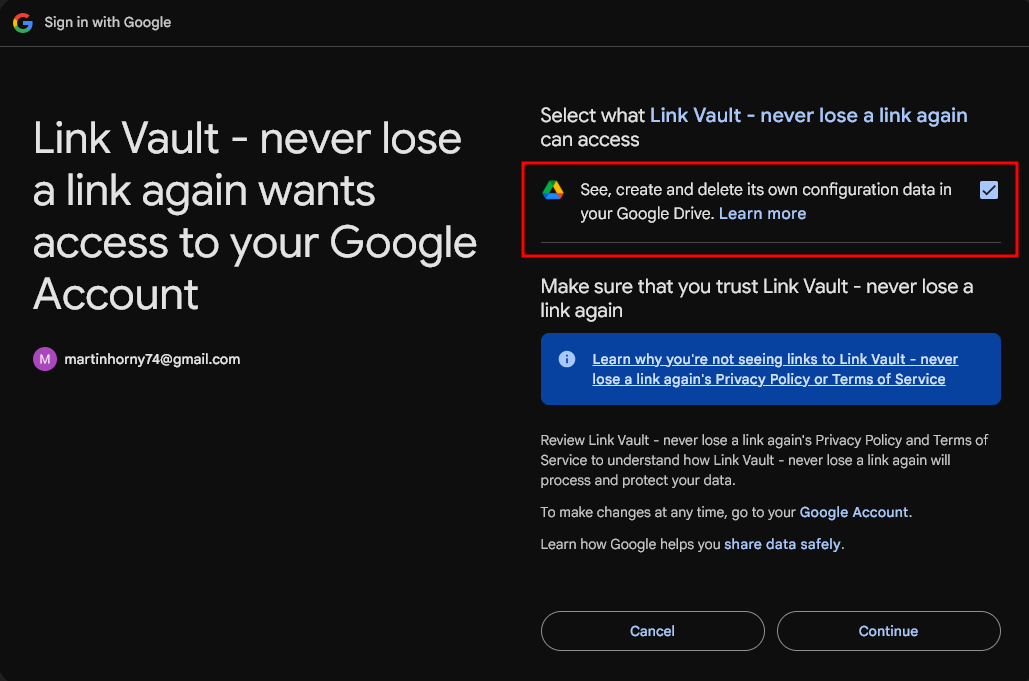
LinkVault needs this access to save and sync your bookmarks. The app can only access its own data — it cannot see or modify any other files in your Drive. Your data always remains yours.
Already signed in without granting this permission?
- 1. Go to your Google Account's Third-party apps with account access.
- 2. Find and select LinkVault in the list.
- 3. Click "Remove Access" to revoke LinkVault's permissions.
- 1. Open LinkVault and sign out from the app.
- 2. Sign in again to LinkVault.
- 3. Check the box allowing LinkVault to access its configuration data in Google Drive.
Android (Chrome)
-
1
Open LinkVault in Chrome
Navigate to the app in Chrome on your Android device.
-
2
Tap the install banner or menu
Chrome may show an install banner at the bottom. If not, tap the three-dot menu and select "Add to Home screen" or "Install app".
-
3
Confirm
Tap "Install". The app icon will appear on your home screen. It will open in full-screen mode like a native app.
iPhone / iPad (Safari)
-
1
Open LinkVault in Safari
Navigate to the app in Safari. Note: PWA installation on iOS only works from Safari, not Chrome or Firefox.
-
2
Tap the Share button
Tap the share icon (square with an upward arrow) at the bottom of Safari.
-
3
Add to Home Screen
Scroll down in the share sheet and tap "Add to Home Screen". Confirm the name and tap "Add".
Requirements
- A modern browser (Chrome, Edge, Safari, Firefox)
- A Google account (for cloud sync — optional but recommended)
- Works offline after first visit (service worker caches the app)
- No account creation needed — sign in with your existing Google account