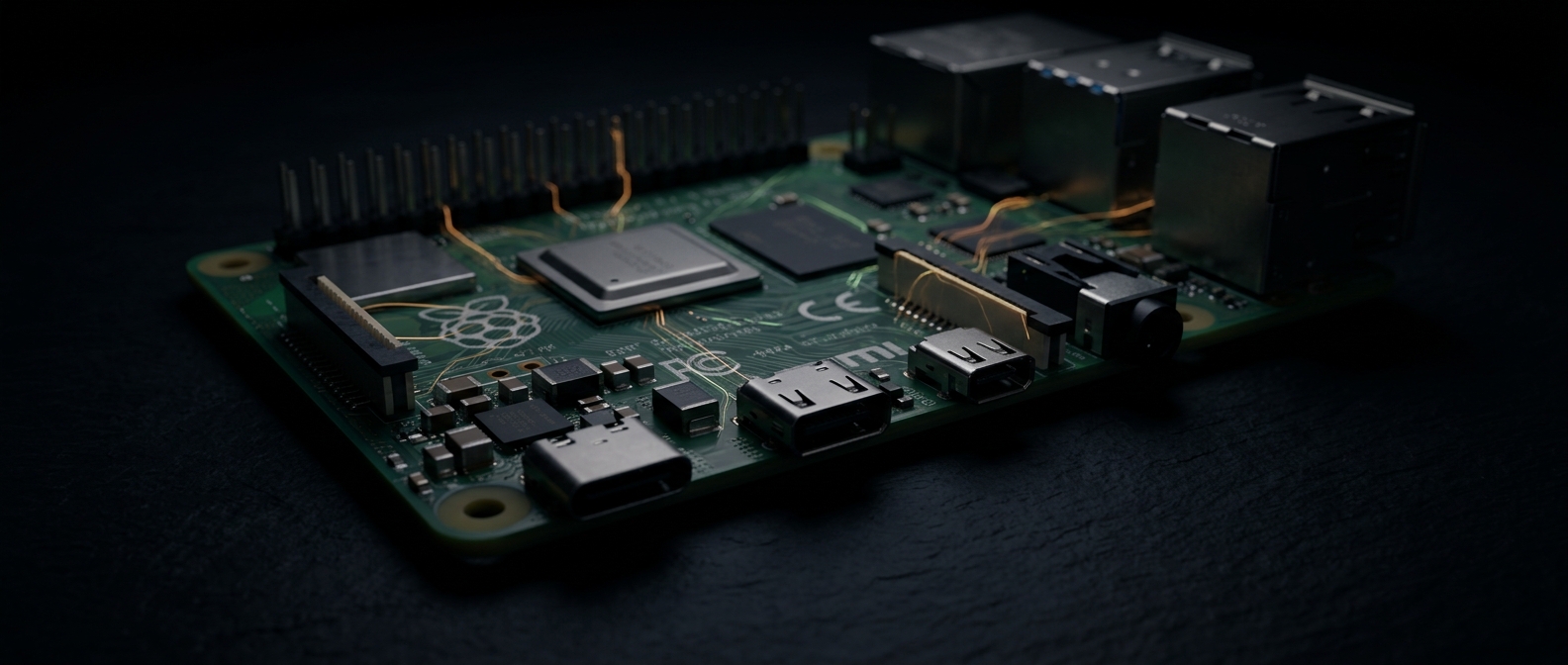
Raspberry Pi 4. The only computer behind the whole wall.
A panel nobody has to switch on.
It hangs in the kitchen and shows exactly what you need right now.
When someone walks in, it wakes up. When the kitchen is empty, it sleeps.
Time and dateWeatherLights and blindsRadio and SpotifyTimersDoor cameras
Home Assistant is the source of truth. The panel is a thin client: the .NET API holds the state, the React kiosk only displays it and sends commands back.
One day on the panel.
Scroll and watch what the panel shows through the day.
The images come from a demo version of the app. The household, lights, cameras, photos and leaflets are invented, the weather is real. Wherever data is not live yet, it says so explicitly.
One glance in the morning.
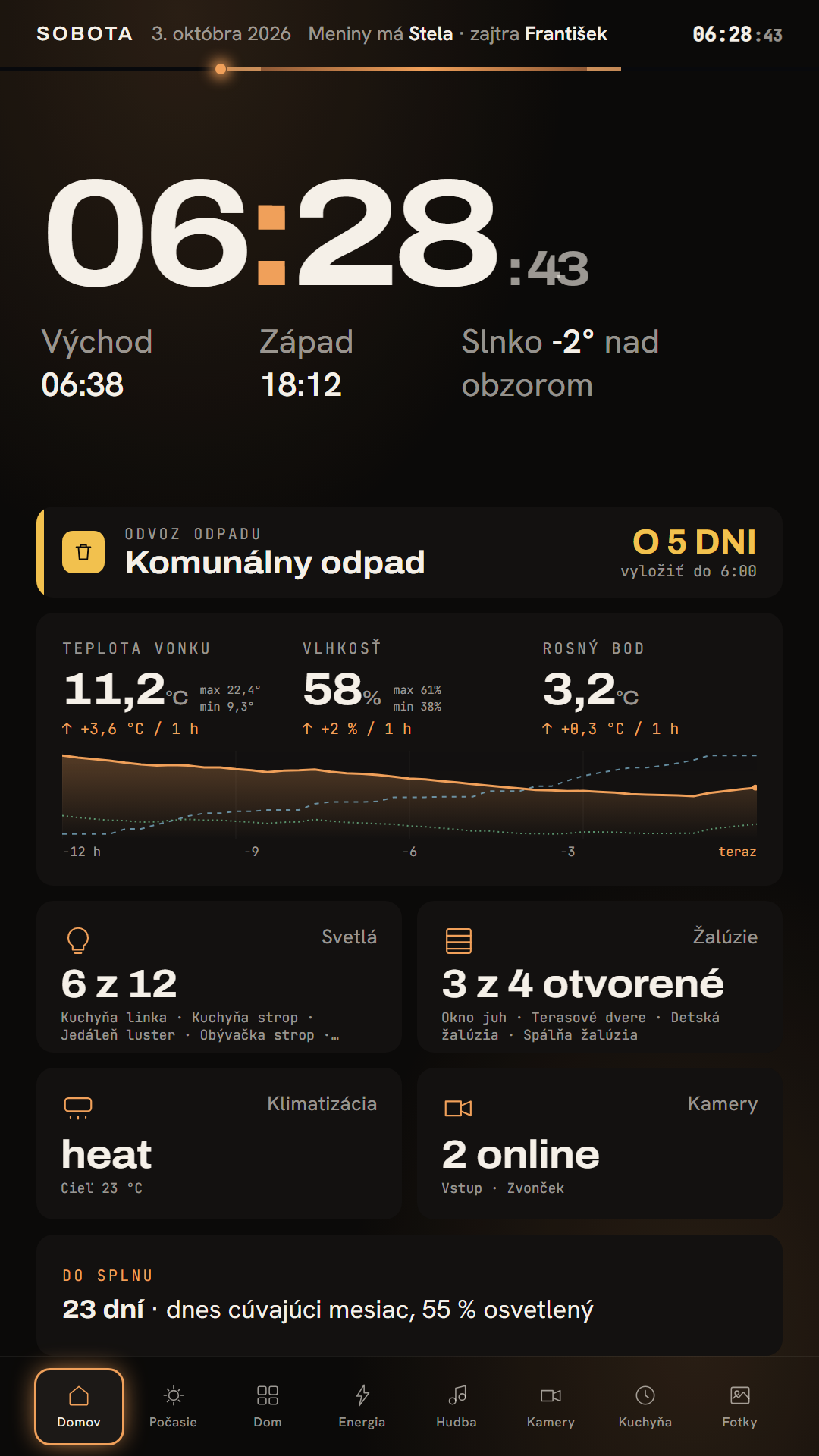
The home screen appears when the panel wakes and answers what you need to know in the morning. At the top is a big clock with the date and name day, below it sunrise and sunset and how far the sun is below or above the horizon. The panel wakes by itself: when someone walks into the kitchen, the motion sensor switches the television on and shows this very screen (at night it returns to the clock).
Further down you see in how many days the bins go out, the outdoor temperature, humidity and dew point with a twelve-hour chart, and four tiles: lights, blinds, air conditioning and cameras. The accent colour changes through the day, so dawn, day, dusk and night each have their own tone.
Try:
Home combines two sources. GET /api/home/snapshot (sun, moon, next collection) refreshes once a minute and live entities arrive as EntityStateChanged over SignalR. The day phase is computed from the real sunrise and sunset and rewrites the colour tokens through data-phase on <body> (dawn, day, dusk, night).
Weather you can see whole.
The big number shows today’s high, below it humidity, feels-like temperature, dew point and pressure. On the right is a wind rose with wind speed in metres per second and on the Beaufort scale, plus gusts. Below you find the UV index, 24-hour precipitation and cloud cover.
The chart joins values measured by your own sensors with the forecast for the coming hours, and the “now” marker shows where we are. Below it is the sun’s path across the day, day length, the current moon phase with the days to the next new moon, and at the very bottom a seven-day forecast.
Everything comes from one GET /api/weather/snapshot: hourlySeries with nowIndex, daily, solarArc and moonTerminatorAngleDeg. The sun path and the moon terminator are SVG; only transform and opacity animate.
In the demo: an invented household and scenes
Lights and blinds within reach of the remote.
Home is the control centre. At the top are scenes that set several lights at once with one press, below them a grid of every light with its brightness in percent. The fuller the tile, the brighter the light. At the bottom are blinds with their position and a strip of sensors for temperature, humidity, CO₂ and pressure.
Everything is controlled with the remote: arrows select a light and Enter opens a detail with brightness and white temperature from warm yellow to cool blue. The panel derives the list of lights from what Home Assistant reports, so a new light appears without changing any settings.
Writes go through POST /api/home/entities/{id}/call-service (light.turn_on with brightness_pct and color_temp_kelvin, cover.set_cover_position). Scenes live in Postgres and are applied on the server through POST /api/home/scenes/{id}/apply. Entities are selected by domain prefix and device_class, with no configuration file.
Waiting for the energy meter
How much the house really uses.
The screen is finished and waiting for the meter. At the top you will see usage since midnight in kWh with its cost and the current power in watts, next to a day curve comparing today with yesterday and the average. Below is the split across the three phases L1, L2 and L3 with power and current, and a warning when the load is uneven.
Further down are bars for the last seven days with the total in kWh and euro and a monthly overview with a bill estimate. The numbers in the image are samples, the meter is not connected yet.
The screen is finished and runs on fixed data from the design. Once a Shelly Pro 3EM is wired in, the mockData module is replaced with a real API (IEnergyMeter).
Waiting for radiator valves
Which room holds the heat.
Once smart radiator valves are installed the house will show how it behaves. The big number is heat loss in W/K: how many watts the house loses per degree of difference between inside and outside, which tells you how much power a frost needs.
Each room’s time constant in hours says how long it holds heat: the higher the number, the slower it cools. The chart of the last clear night shows the real cooling fitted with a curve, and the bottom chart compares heating use with degree-days. The data in the image is sample data.
Time constant tau of each room from the night cool-down (exponential fit, R squared), heat loss in W/K by regression against degree-days. Waiting for Netatmo smart valves.
Music in one press.
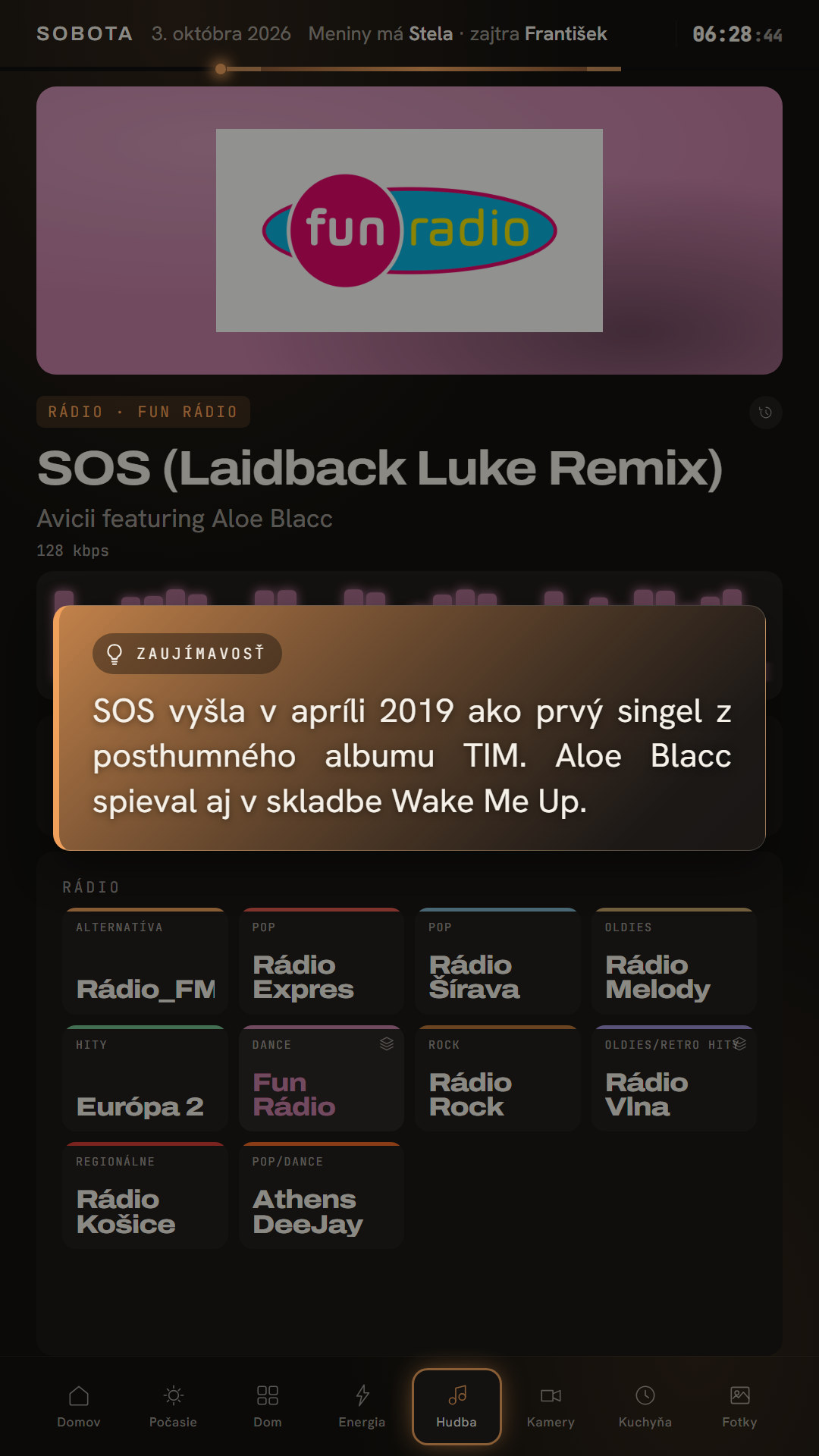
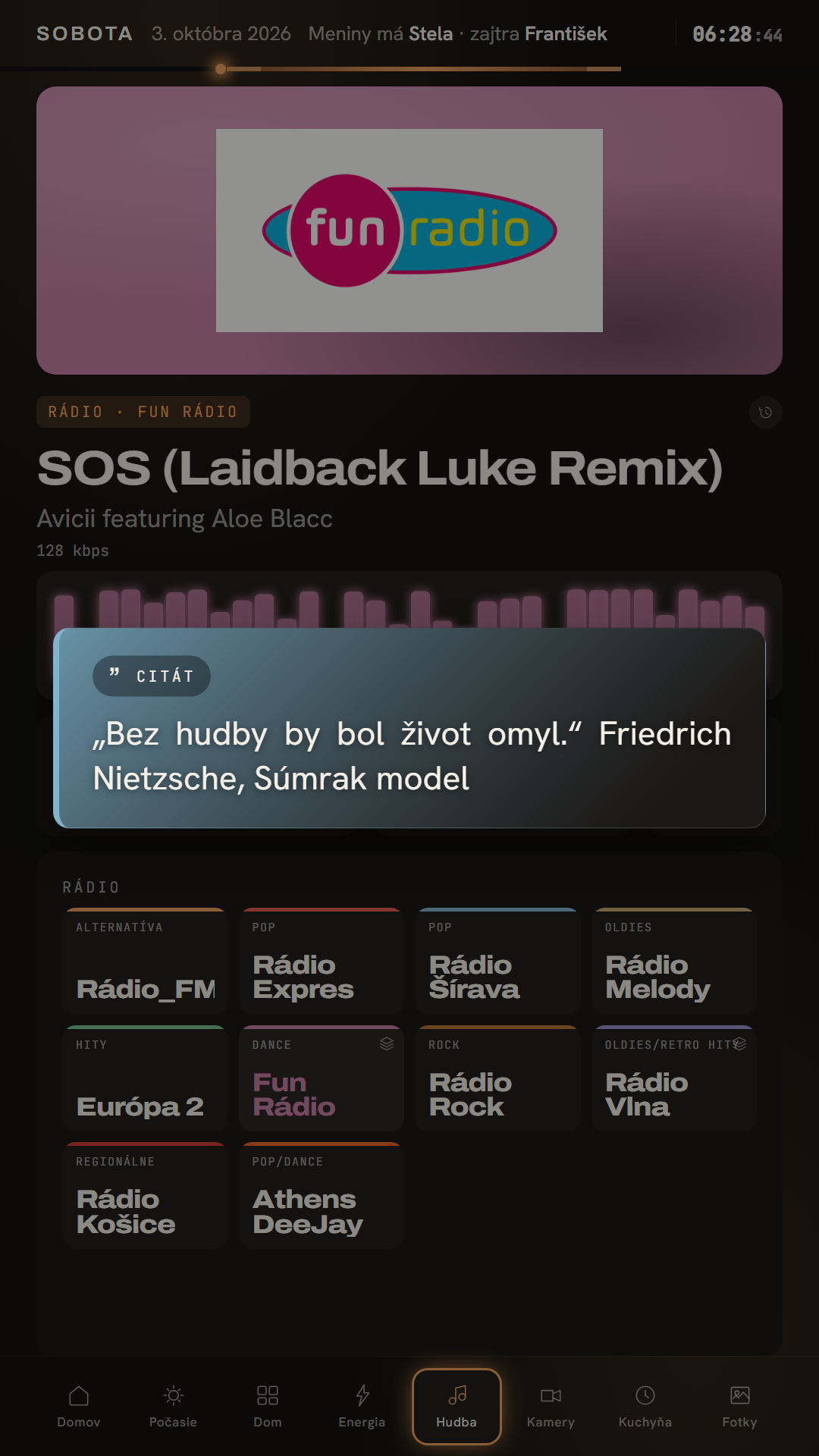
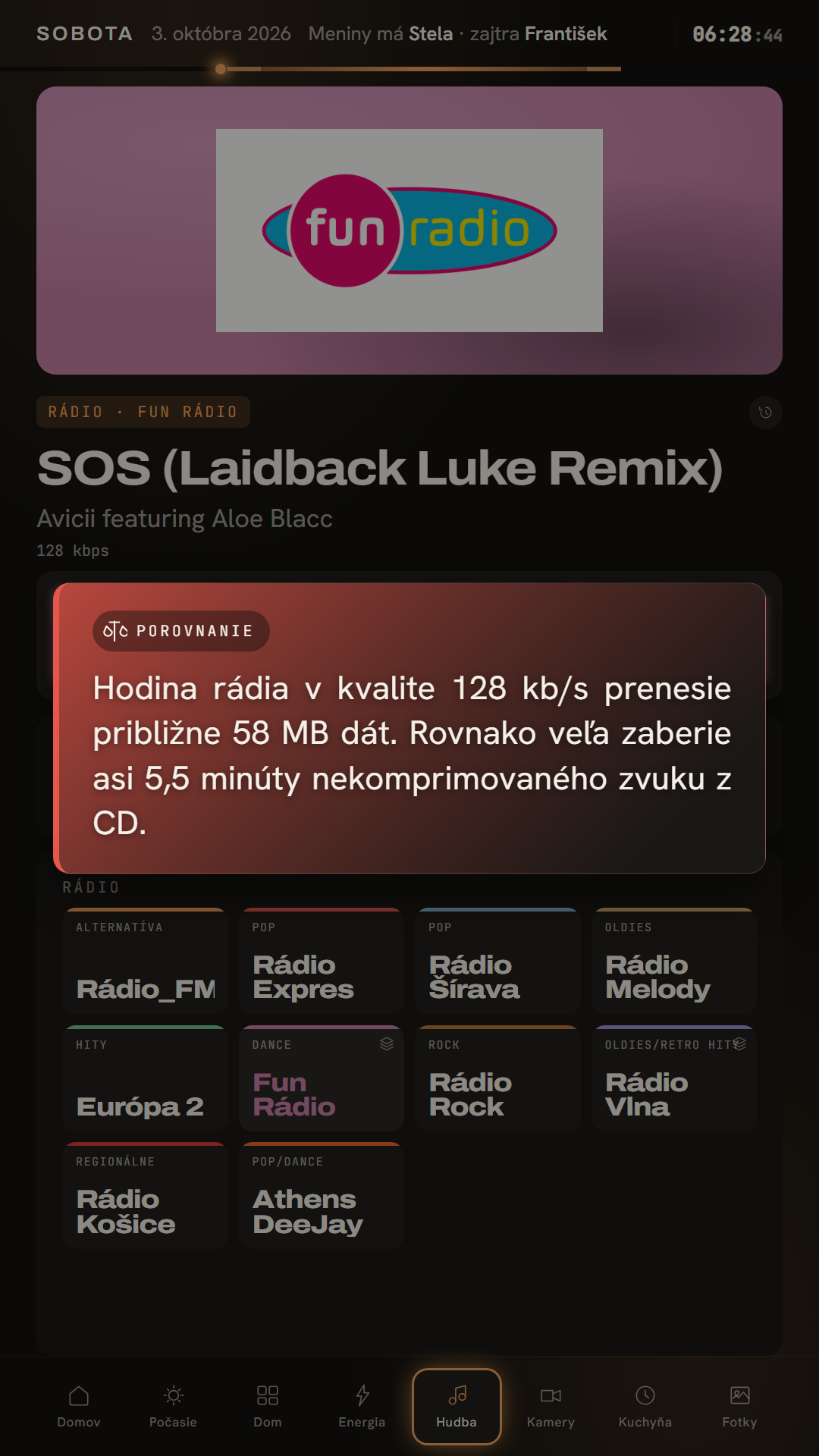
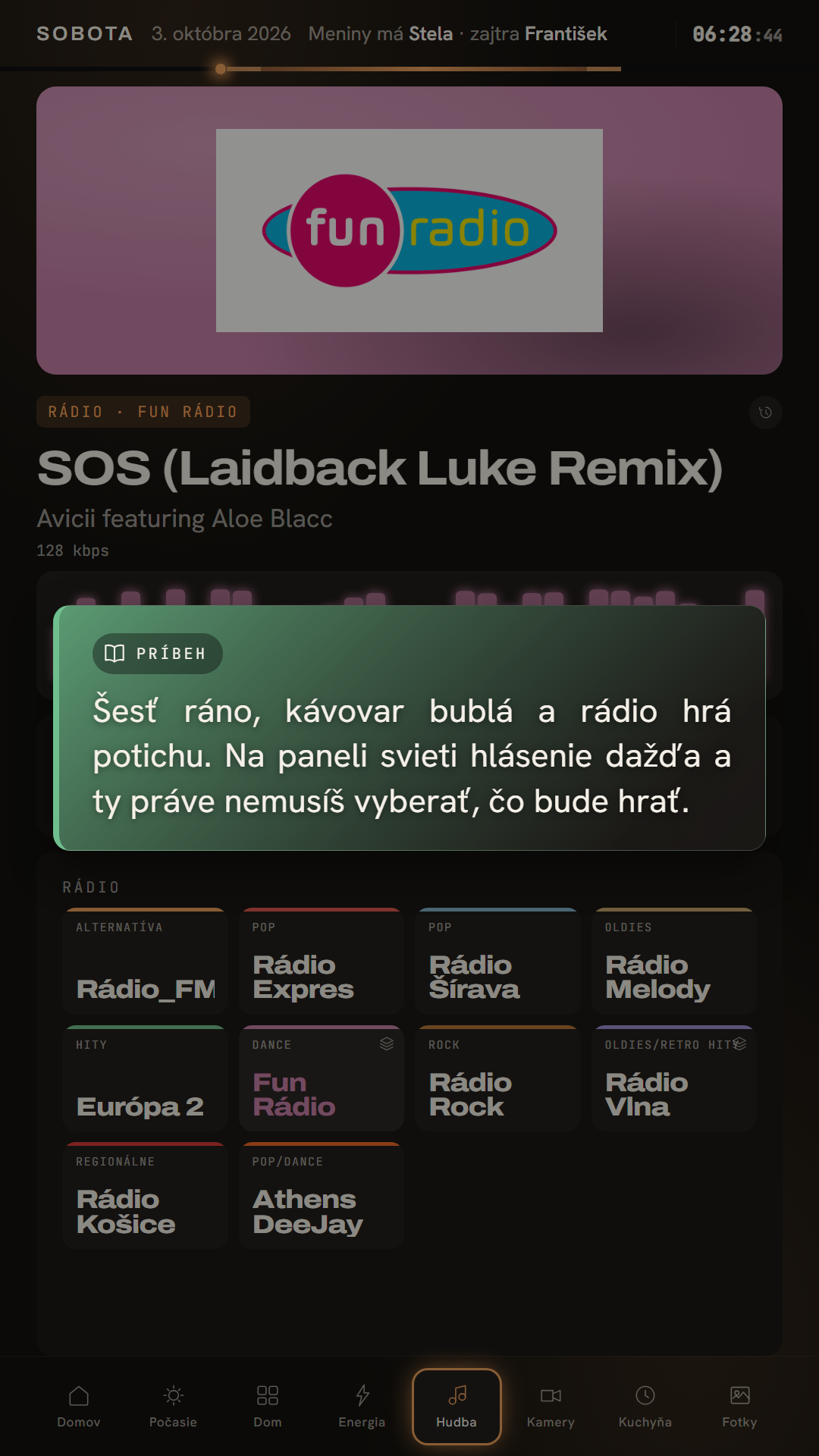
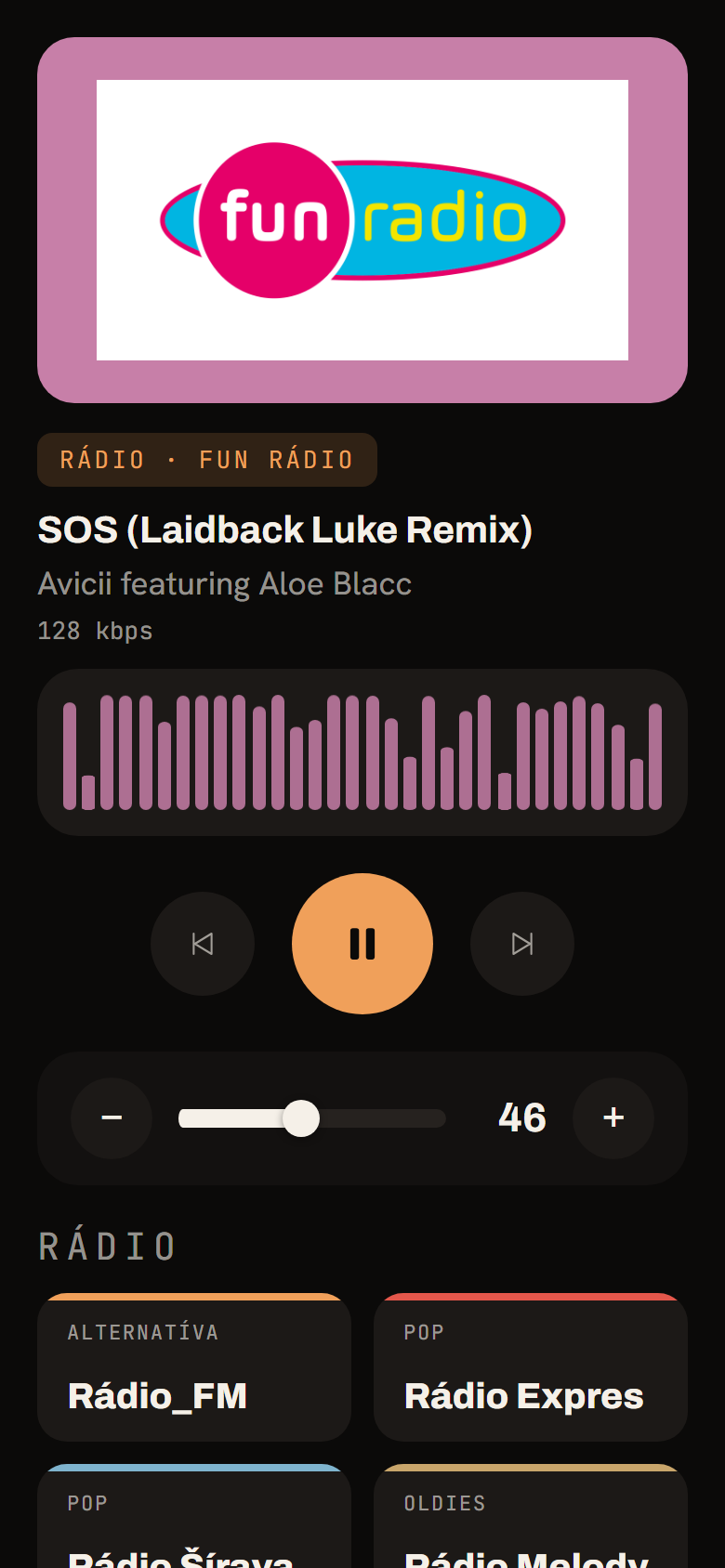
At the top is the station logo or album art, below it the title and artist and a visualiser that follows the artwork’s colours. With one press you control playback and volume, with the remote or the plus and minus keys, and choose from twenty radio stations. Groups like Fun Rádio or Vlna expand into variants on a long press, and a QR code opens the controls on your phone.
Every new song brings up something interesting about the artist or the track: a short fact, a quote, a comparison or a mini story, which you can browse later in a history. It is generated only when someone is present in the kitchen, so nothing is generated for an empty room. If you only arrive halfway through a song, the fun fact still appears.
This is what the four forms of a fun fact look like. The texts in the demo are hand-written; on the live panel Claude generates them for every new song.
Fun factQuoteComparisonStory
Try:
Song sources: ICY metadata for radio, getMetaInfo for Spotify through WiiM. A fun fact is the SignalR event MusicFunFactGenerated whose format field (funFact, quote, comparison, miniStory) selects the visual. Generation is tied to binary_sensor.human_1, history is read from GET /api/hudba/funfacts/history.
In the demo: illustrative images, not real cameras
You see who is at the door at once.
The cameras show two views, the entrance and the doorbell, and the picture refreshes every second. When a camera detects a person or someone rings, a window with a snapshot pops up over any screen. The snapshot is taken at the exact moment of the event, while the person is still in frame, not after a click.
From the window you can answer the visitor and open the gate, if configured. At the bottom a list of recent events collects. When the kitchen is empty the screensaver skips the Cameras screen, because it would fetch snapshots every second for nothing. The images in the demo are generated illustrations, the real cameras are never shown on a public page.
Try:
Snapshots are fetched as blobs and revoked on release so memory does not grow. An event arises only on the off to on edge of a binary_sensor; the first sighting of a sensor is not an edge. A camera is matched to an event by entity name.
The leaflet in the demo is illustrative
Nothing burns while you cook.
Kitchen is the screen for cooking. Three large slots show running timers, four quick buttons (3, 5, 10 and 15 minutes) and four presets (eggs, pasta, rice, oven) start them with one press.
Below them are the kitchen’s temperature, humidity and dew point with a chart and at the bottom browsable grocery leaflets with a QR code for the full catalogue on your phone. When a timer finishes the panel beeps and shows a large notice with a short quip on any screen, so nothing burns. A timer announces itself even in an empty kitchen, because its job is to summon someone.
Try:
Timers run on the client: the one-second tick only derives the remaining time, so a throttled background tab cannot slow it. Completion may call tts.speak through Home Assistant; the house-wide announcement is still waiting for the speakers.
In the demo: illustrative images
A family album you choose yourself.
Photos show a family album as a collage on a large surface: a portrait photo fills a whole slot, landscape ones stack two or three in a column. The order keeps photos from the same day or trip together and changes slowly. Photos with a location get a small map and a caption with date and place, and the same album also serves as a screensaver when the kitchen is quiet.
Why the Google Photos Picker? In March 2025 Google removed apps’ access to a whole photo library. A third-party app can no longer read your photos on its own; only Google’s own displays, like the Nest Hub, can. The only supported path is the Picker: the panel shows a QR code, you scan it with your phone, sign in to your Google account and choose the photos yourself in Google’s official window, all at once if you like.
The panel stores the chosen photos locally and then runs without calling Google. The advantage is consent limited to exactly your selection: the panel never sees the rest of your library. When new photos appear later the panel reminds you to top up, and you can remove an unwanted photo from the panel without touching Google Photos.
Picker API: session, pickerUri shown as a QR code, polling until mediaItemsSet, then download of the bytes and EXIF (date, GPS) and reverse geocoding through Nominatim, because the baseUrl is valid for only about 60 minutes. The OAuth client and refresh token live on the server. The collage algorithm is a pure function collage.ts; Ken Burns uses transform only.
One more screen, Clock: when the kitchen is quiet the panel switches to a large analogue clock with world times (New York, Tokyo, Sydney) and at night to a dimmed night mode. Movement in the kitchen wakes the screen again. This screen has no image in the demo yet.
The kitchen knows whether anyone is there.
There is a PIR motion sensor in the kitchen. From it the panel knows whether anyone is moving in the room and behaves differently when you are next to it and when the kitchen is empty. You do not have to switch anything on or set anything up.
The main idea: the panel should not shine into an empty room, yet it should be ready the moment someone arrives. So after ten minutes without movement the television switches off too, and on the first movement it switches back on. Waking takes about ten seconds, because that is how long the television needs before it shows a picture. The panel covers that time with a dark screen and then a short flash, so it is clear that it has switched on.
Recording from the demo: the display goes to sleep and wakes when someone arrives.
SituationBy day (6:00 to 22:30)At night (22:30 to 6:00)
Someone is in the kitchen
By day
The panel responds to the remote as usual. With music, fun facts pop up even if you arrived halfway through a song. The screensaver starts only after five minutes without any button press, so it never interrupts a recipe you are reading while cooking.
At night
The same behaviour. Music fun facts depend on presence, not on the time, so they work in the evening too.
The kitchen is quiet (5 minutes without a button press)
By day
The screensaver starts. Every three minutes the panel moves to the next screen (Home, Weather, Energy, Cameras, Kitchen, Photos and the clock) so that an unchanging picture does not burn into the display. It skips the Cameras screen when nobody is in the kitchen, because it would fetch snapshots every second for nothing.
At night
The screensaver does not cycle screens. It stays on the dimmed analogue clock, which is the gentlest on both eyes and pixels.
Nobody has been there for 10 minutes
By day
The Raspberry Pi switches off its video output and sends the television a standby command over HDMI-CEC. Both television and panel rest until something moves in the kitchen.
At night
The same as by day. Switching off depends only on movement, not on the clock.
Someone arrives while the television is asleep
By day
The Pi switches the television on over HDMI-CEC and then the picture. The panel goes dark at once, and when the television actually shows a picture after about ten seconds, a flash plays and the panel jumps to Home, so the first thing you see is today’s overview.
At night
The same flash confirms that the television has switched on, but the panel does not jump to Home. It returns to the dimmed clock, so a bright screen does not flood you at night.
Someone arrives while the television is on
By day
If the sensor simply triggers again while the television is still on, the panel ends the screensaver at once and returns to the controls. It does not jump to Home; it only does that after the television has really been off.
At night
The panel closes the clock at once and returns the screen that was underneath it.
The Power button on the remote
The button switches the television off or on over HDMI-CEC, the same by day and at night. When switching off, the panel shows a large “System is shutting down” for eight seconds so you can see the press registered, and when switching on the same flash as when someone arrives.
One exception is deliberate: the kitchen timer announces itself even in an empty room. Its job is to summon someone, so it would make no sense to wait for the presence it is summoning.
What is not perfect yet: while waking, the television sometimes flickers several times and shows an on-screen message about HDMI control. We found that our program is not doing it. The television renegotiates the HDMI link when it switches on, which can be softened but not fixed.
The sensor binary_sensor.human_1 (Zigbee, device_class motion) reaches the backend through Home Assistant. The Pi runs a bash watchdog that reads the SSE stream GET /api/home/entities/stream?entityId=binary_sensor.human_1 with curl -N and jq. It used to poll every 15 s, which added up to 15 s of delay; push reduced that to an instant reaction. After 600 s of absence: a sentinel file, wlr-randr --output HDMI-A-1 --off, then CEC standby 0 (cec-client, flock on /tmp/cec.lock because the adapter can be opened by only one process at a time). On return: CEC on 0, as, wlr-randr --on and POST /api/display/woke, which SignalR delivers as DisplayWoke. AmbientRotation and WakeFlashOverlay react only to this single signal, the same for the manual Power button (cec-toggle.sh) and for the sensor. The night boundary is isNight(): 22:30 to 6:00.
Doesn't work yet. The plan is clear.
The panel is never finished. Every new thing sparks another idea. Here is what's growing.
Waiting for hardware
Energy
The screen is drawn and tested. Once a meter is mounted in the switchboard you'll see today's usage, three phases, the week and a monthly bill estimate.
Shelly Pro 3EM to IEnergyMeter. Today it runs on mock data from the design.
Waiting for hardware
House behaviour
After smart radiator valves are installed the house will tell you which room holds heat, which doesn't, and what heating really costs.
Tau per room from the night cool-down, heat loss in W/K and a regression against degree-days. Source: Netatmo.
Done, waiting for speakers
Announcement through the house
When a timer finishes a voice should sound in every room. The code is deployed, but the speakers dropped off the home network and await repair.
tts.speak through Home Assistant. The Cast integration lost three devices; the fault is not in the panel's code.
Rejected, and why
Resume Spotify after a drop
Every family member has their own account, so an account picker would be needed. The complexity outweighed the benefit, so we left it.
Maybe in time
A professional display
Today an ordinary television sits behind the panel. In time a professional Iiyama display may arrive, made for exactly this kind of application. For now it is only an idea, not an order.
Each of these appeared while using it, not on paper.
Control it yourself.
Try it. Arrows, click or touch.
It is the real application (the same code as on the wall) running on data from the demo household. The phone page (/mobil/hudba) is a screen of its own, not a shrunken panel.
Click the panel itself, or use the arrows on the remote or your keyboard (while your pointer is over it or after you focus it with the Tab key). On the right is the music remote, which on a real phone you open by scanning the QR code on the panel. The other screens are made for the TV, not for a phone.
LIVEthe real app, not a video
Panel
Phone: music remote (PWA)
real UI · fictional data
The panel knows what to do.
Someone walks in
After a long empty spell the TV switches off. On the first movement it switches itself on, shows a flash and jumps to Home (at night it returns to the clock).
binary_sensor.human_1 to DisplayWoke (SignalR). The Pi watchdog switches the TV on over HDMI-CEC.
A timer finishes
It beeps and shows a big notice so dinner doesn't burn.
The overlay is mounted at shell level, so it appears on any screen.
A new song
A fun fact about the artist appears under the title.
MusicFunFactGenerated; the history of fun facts is available through the badge.
Someone rings
The panel pops up with the picture from the door, even if you are watching something else.
The off to on edge of binary_sensor.front_door_bell_visitor opens a popup over any screen.
Under the glass.
The panel looks simple because all the work is hidden. Click any node.
Home Assistant
The home brain. Today it runs on the home lab server (a NUC). It collects the state of every sensor and light and accepts commands. The panel does not talk to it directly but through its own API.
Sources to HA (MQTT, Zigbee through ZHA) to Panel.Api (HA WebSocket client, EntityStateChanged broadcast) to clients. The Pi is a thin display: it runs only a browser and small shell scripts for power (watchdog, CEC), no application logic.
Why it looks simple.
Smooth even in 4K
Motion stays smooth on a computer the size of a credit card.
Pi 4 composites 3840x2160. Only transform and opacity animate; no blur over the whole screen.
Clocks without effort
The hands run on a simple animation so the panel isn't burdened.
CSS animations with a negative animation-delay computed once. No requestAnimationFrame loop.
News arrives by itself
The panel doesn't keep asking if anyone is home. It finds out instantly, so the television switches on without needless waiting after someone arrives.
Push (SSE and SignalR) instead of polling for presence, media and entities. The original 15-second polling was replaced by an SSE stream, so waking the television no longer waits up to 15 s.
Heals itself
WiFi drops or the browser freezes? The panel gets back up without help.
Unlimited SignalR reconnect policy plus a watchdog that restarts Chromium after a crash.
Runs for months
It never switches off and never slows down.
No memory growth: snapshot blob URLs are revoked, listeners are bounded.
No mouse
Everything is controlled with a remote, like a television.
A custom focus manager on top of the D-pad: zones, wraparound and a back-button guard for overlays.
The museum of bugs.
Weeks of polishing found bugs no test caught. Here are five we're proud of.
Three columns that wrapped
Min and max numbers broke onto a second line on the real panel.
Only a screenshot from the live Pi caught it. Tests passed.
A slash at the end of a path
The phone app wouldn't install because the service worker had the wrong scope.
Found only by reviewing the whole branch.
The screen that stayed dark
In a rare event order the panel got stuck dark after waking.
A race condition caught by the final review.
A double press on radio
Fast key repeat overlapped with rendering when picking a station.
flushSync race and key-repeat, found in review.
An animation that ignored “reduce motion”
Sensitive people turn animation off. The clock hands didn't respect it.
A real accessibility bug, fixed.
From idea to wall.
The first version took hours. Making it bug-free took weeks. Each bar is one day.
Nothing was bought, everything was already at home.
The panel was not created by buying new equipment. Behind the display is an ordinary television, not a smart model. It needs no intelligence of its own, because a small computer behind it does everything. That computer is a Raspberry Pi 4 we already had. It was tucked away in a drawer and ran Home Assistant until that moved elsewhere.
Home Assistant moved to a NUC server that was also already at home. The NUC gradually became more than the host of one application: it gained DHCP and DNS for the whole home network, a Cloudflare tunnel for the public website and other services, until it grew into a home lab server. The kitchen panel is now one of its services and the Pi behind the television is just a thin display.
It can be done more elegantly. In time a professional Iiyama display may arrive, made for exactly this kind of application. Professional displays of this kind are usually built for all-day operation and control from a computer, so they could replace some of the workarounds we make today through the television and HDMI-CEC. For now it is only an idea, not an order.
How the hardware evolved
1
Home Assistant on the Pi
A Raspberry Pi 4 tucked in a drawer carried the whole smart home.
2
The move to a NUC
Home Assistant moved to an Intel NUC server and the Pi became free.
3
The home lab server
The NUC gained DHCP, DNS, a Cloudflare tunnel and other services and became the heart of the home network.
4
The kitchen panel
The free Pi 4 and an ordinary television became a display whose content is one of the server’s services.
5
Maybe in time
Maybe a professional Iiyama display, made for exactly this kind of application.
Want one too?
The basics are simple and most of the items on this list probably already sit somewhere at home. The long part is polishing details so it works at home for years.
DisplayAn ordinary television, smart features not needed (ours is 43", in portrait)
Computer behind itRaspberry Pi 4 (ours is the one that used to carry Home Assistant)
Home brainHome Assistant (ours runs on the NUC server)
ControlRemote with a D-pad
ServerA small server on your home network (ours is an Intel NUC)
The author
Martin Horný, a .NET developer from Košice, Slovakia. He builds his own applications, from AI assistants and PWAs to ESP32 smart home hardware. This panel was built at home and runs every day.